
I’ve been using AI in Chrome for a while now, mostly for quick lookups and comparisons. But there’s always been this friction: if I find a prompt that works well — say, “make this recipe vegan” or “compare these products — I have to type it in fresh every single time I visit a new page. It gets old fast.
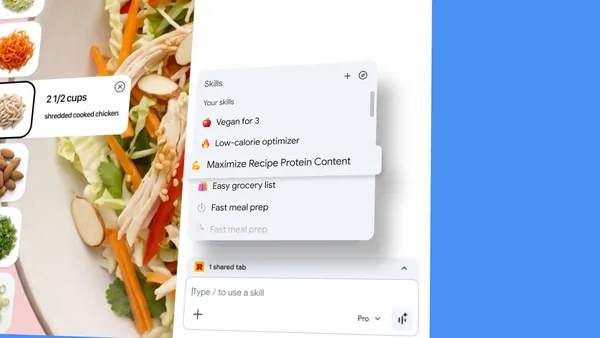
Google just announced Skills in Chrome, and honestly, this is the kind of quality-of-life feature that makes me wonder why it took this long. Skills let you save your best prompts and run them with one click, right from the Gemini sidebar. No copy-paste, no re-typing.
How Skills Work
You write a prompt once, use it, and if it’s a keeper, save it directly from your chat history. Next time you’re on any page, just type forward slash (/) or click the plus sign (+) in Gemini, pick your saved Skill, and it runs on the current page. You can even select multiple tabs to run it across — handy for side-by-side comparisons.
Early testers have already built some genuinely useful workflows. A few examples from the announcement:
- Health & wellness: calculating protein macros for any recipe
- Shopping: generating spec comparisons across multiple product tabs
- Productivity: scanning long documents for key info
I’d add my own: I’ve got a Skill that summarizes news articles in three bullet points. Saves me from reading fluff. Your mileage may vary, but the flexibility is there.
Ready-Made Skills Library
Google is also launching a library of pre-built Skills for common tasks. Things like breaking down product ingredients, cross-referencing a budget with a recipient’s interests for gift ideas, and more. You can grab one, try it, and edit the prompt if it doesn’t quite fit. That’s smart — not everyone wants to craft prompts from scratch.
Privacy and Control
Skills inherit Chrome’s existing security model: automated red-teaming, auto-updates, and confirmation prompts before sensitive actions like adding calendar events or sending emails. So no rogue Skill is going to book a flight without asking you first. That’s reassuring, though I’d still be careful with Skills that touch personal data.
Rollout starts today on Chrome desktop. Your saved Skills sync across signed-in devices, and you can manage them via the compass icon in the Gemini menu.
This is one of those features that sounds small but changes how you use the browser. I’m already planning a few more Skills for repetitive tasks I deal with daily. If you spend any time in Gemini, give it a shot — it might just become your most-used Chrome feature.
Comments (0)
Login Log in to comment.
Be the first to comment!